Online Laptop Speaker Test
Speaker not working? Try this
- Check that your device volume isn't muted or turned down low.
- Check your left/right audio balance setting in your operating system's sound settings.
- Disconnect any Bluetooth speakers or headphones that might be capturing the audio output.
- Unplug wired headphones — some devices keep routing sound there even after you unplug.
- Restart your device to clear out any stuck audio driver state.
- Gently clean the speaker grille — dust and debris can muffle or block sound.
- Try this test in another browser or on another device to rule out a page or app issue.
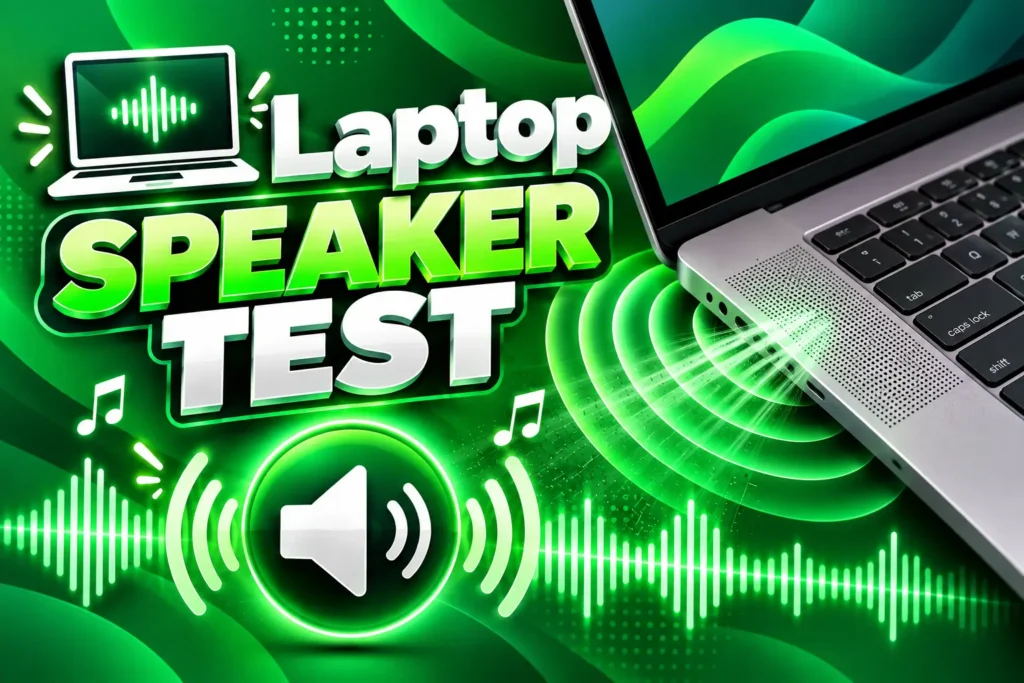
This laptop speaker test checks left and right notebook speakers in your browser. Use channel tones and sweeps to find dead laptop speakers, crackling, weak bass, or stereo imbalance on Windows and ChromeOS machines.
No driver pack needed—just play the tones to inspect built-in laptop audio before a repair or used purchase.
How to Test Your Laptop Speakers
- Unplug headphones and external speakers. Sound must play through the laptop itself.
- Turn off Bluetooth audio. Make sure your laptop is not sending sound to earbuds or a speaker.
- Unmute your laptop and raise the volume to about 70%.
- Open the Laptop Speaker Test page in your browser.
- Press the start button and listen carefully.
- Play the left and right channel tests. Both sides should sound equally loud.
- Run the frequency sweep. Listen for low or high tones that fade or sound rough.
- Repeat at low and high volume. Some faults only show at certain levels.
Related Tools
Explore brand-focused and device-focused speaker diagnostics.
Samsung speaker test
Check Galaxy bottom speakers, earpiece clarity, stereo balance, and rattle on Samsung phones with this free online speaker diagnostic.
iPhone speaker test
Test iPhone loudspeaker and earpiece for muffled calls, crackling audio, water damage symptoms, and weak volume in Safari or Chrome.
Android speaker test
Run a quick Android speaker checker for mono or stereo output, distortion, channel imbalance, and earpiece call-speaker problems.
Oppo speaker test
Diagnose Oppo phone speaker issues including muffled bass, tinny treble, dead channels, and blocked speaker grilles.
OnePlus speaker test
Verify OnePlus stereo speakers for balance, peak loudness, buzzing at high volume, and earpiece call audio quality.
Vivo speaker test
Use this Vivo speaker checker to spot crackling, weak output, water blockage, and uneven left-right sound.
Xiaomi Redmi speaker test
Test Redmi and Xiaomi speakers for rattling, low volume, distorted music playback, and earpiece voice clarity.
Google Pixel speaker test
Check Pixel bottom speaker and earpiece for clear calls, stereo music, and vibration or buzzing under load.
macbook speaker test
Test your MacBook speaker now – check stereo sound, bass, and clarity free in seconds.
Laptop speaker test
Browser-based laptop speaker test for left/right channels, bass response, crackling, and stereo balance issues.
Tablet speaker test
Test iPad and Android tablet speakers for volume, stereo separation, distortion, and uneven channel output.
Earpiece call speaker test
Focus on the top ear speaker used for phone calls — ideal when media works but voices sound quiet or broken.
Phone speaker test
Test your phone speaker now – free, instant, and no app needed.
Bose speaker test
Test your Bose speaker now – check sound, bass, and balance free in seconds.
Marshall speaker test
Test your Marshall speaker now – check bass, treble, and clarity free in seconds.
Apple Speaker Test
test your Apple speaker now – check sound, volume, and clarity free in seconds.
iPad Speaker Test
Test your iPad speaker now – check left, right, and bass sound free in seconds.
Airpod Speaker Test
Test your AirPods now – check left and right sound, bass, and clarity free in seconds.
Run the laptop speaker test now
Select built-in speakers, then run left, right, bass, and balance checks above.
What this laptop speaker tester checks
Bottom-case speakers fail from spills and clogged vents. This tool focuses on what you can hear from the chassis speakers.
Left laptop speaker
Detect a silent channel after liquid damage.
Right laptop speaker
Confirm matching output on the other side.
Bass and treble sweeps
Reveal rattles in cheap chassis speakers.
Volume distortion test
Hear crackle before presentation day.
Stereo balance
Slide to quantify which side is weaker.
Result checklist
Mark working/not working for IT tickets.
Laptop Speaker Test for Windows, Mac, and Chromebook
Windows Laptops
Many Windows laptops use sound enhancement software. If the sound is strange, check your sound settings and turn off effects. Also make sure your audio driver is up to date.
MacBook
MacBook speakers are usually clear and loud. If the sound is crackling or low, check that your Mac is set to Internal Speakers and update macOS. Restarting can also help.
Chromebook
Chromebooks are simple, so most sound problems come from volume or output settings. Check the volume in the quick settings panel and try a restart.
Laptop speaker problems this checker reveals
Common searches include laptop left speaker not working, laptop speakers crackling, and laptop no sound from speakers.
One channel dead
Driver or cable failure after impact or liquid.
Crackling at high volume
Worn speakers distort under load.
HDMI audio takeover
Monitor speakers steal output—switch back to laptop speakers.
Dust-clogged bass ports
Muffled sound until cleaned.
Driver vs hardware confusion
If tones fail but headphones work, suspect chassis speakers.
What Is the Laptop Speaker Test?
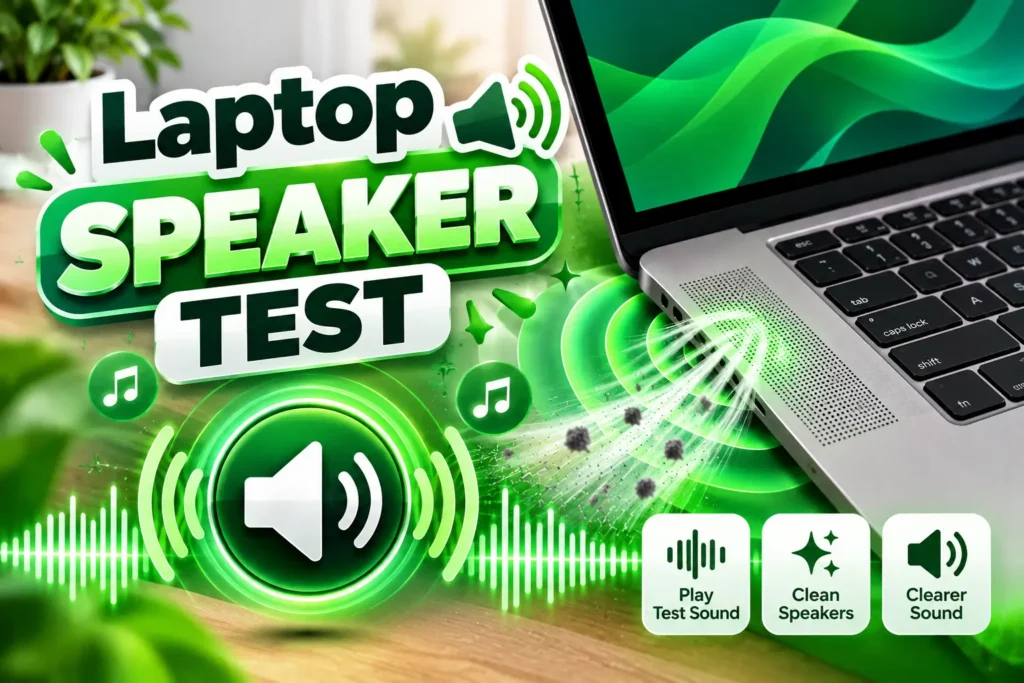
The Laptop Speaker Test is a free online tool that plays test sounds through your laptop so you can check if the speakers work properly. It plays tones, frequency sweeps and stereo sounds. You listen and find out if the sound is loud, clear and balanced, or if there is a problem like low volume, crackling or no sound.
It works on all laptops, including Windows laptops, MacBooks and Chromebooks. It supports popular brands like HP, Dell, Lenovo, Asus, Acer, MSI, Samsung and Apple. It runs in Chrome, Edge, Firefox, Safari or any modern browser, so you do not need to install any software.
Common Laptop Speaker Problems and Fixes
Laptop has no sound
Check these first:
- Make sure the laptop is not muted, and the volume is up.
- Unplug headphones. A stuck headphone jack can block the speakers.
- Turn off Bluetooth, and disconnect HDMI or USB audio devices.
- Restart your laptop and test again.
- On Windows, right-click the speaker icon, open Sound settings and choose your laptop speakers as the output device.
- On Mac, open System Settings > Sound > Output and choose Internal Speakers.
If the test is still silent, a driver issue or hardware fault may be the cause.
Laptop sound is low
Low sound is often caused by low volume settings, a wrong output device or dusty speaker grilles. Try these:
- Raise the volume in the system, in the browser tab and in the app itself.
- Clean the speaker grilles gently with a soft, dry brush.
- On Windows, open Sound settings > More sound settings, select your speakers, open Properties and check the Enhancements tab. Try turning Loudness Equalization on or off.
- Make sure nothing is blocking the speakers, such as a soft surface like a bed or sofa.
Laptop speaker crackling or distorted
Crackling can come from a damaged speaker, a bad audio driver or very loud audio. Lower the volume and test again. If the test sound crackles too, update or reinstall the audio driver. If it still crackles, the speaker hardware may need repair. If the test sounds clean but one app crackles, the problem is in that app.
Sound only from one side
If only one speaker works, a speaker cable may be loose, or the audio balance may be off. On Windows, open Sound settings > Properties > Levels > Balance and make sure left and right are equal. On Mac, check System Settings > Sound > Balance. Also turn off mono audio in the accessibility settings. If the left and right tests still show a weak side, that speaker may be damaged.
Audio driver problems on Windows
A missing or old audio driver is a very common cause of sound problems. To fix it:
- Open Device Manager and expand Sound, video and game controllers.
- Right-click your audio device and choose Update driver.
- If that does not help, choose Uninstall device, then restart your laptop. Windows will reinstall the driver.
- You can also download the newest audio driver from your laptop brand's support site.
Sound problem after a Windows or macOS update
Updates can change audio settings or cause driver bugs. Restart your laptop, check the output device and install the latest updates. If the problem started right after an update, try rolling back the audio driver in Device Manager.
Sound problem after liquid spill or a drop
Liquid or a hard drop can damage the speakers or loosen their cables. Turn off the laptop at once after a spill, and let it dry fully. Do not use a hairdryer. If the test shows low, uneven or no sound after a spill, drop or repair, take the laptop to a repair shop.
Laptop Speakers vs Headphones vs External Speakers
| Feature | Laptop Speakers | Headphones | External Speakers |
|---|---|---|---|
| Location | Built into the laptop | Plugged in or Bluetooth | Plugged in or Bluetooth |
| Best for | Quick use, meetings | Private listening | Better, louder sound |
| Tested by | Laptop Speaker Test | Headphone test | Speaker test |
If your laptop sound is fine with headphones but not through the speakers, the built-in speakers or their settings are the likely problem.
Tips to Keep Your Laptop Speakers Healthy
- Clean the speaker grilles gently with a soft, dry brush. Never use needles or sharp tools.
- Keep liquids away from your laptop.
- Do not use your laptop on soft surfaces like a bed, as they block the speakers.
- Do not play music at maximum volume for long periods.
- Keep your system and audio drivers updated.
- Close extra apps that may take control of the sound.
- Test your speakers after drops, repairs or updates.
Why Use Our Laptop Speaker Test?
100% Free
No cost, no signup and no limit.
No Software Needed
Runs in your browser and saves storage.
Works on All Laptops
Windows, MacBook, Chromebook, HP, Dell, Lenovo, Asus, Acer and more.
Full Speaker Check
Tests volume, channels, bass, treble and distortion.
Fast Results
Know your speakers' condition in under a minute.
Safe
All sounds play at normal levels.
Easy to Use
Simple steps anyone can follow.
Benefits of Testing Your Laptop Speakers
- Find problems early, before they get worse.
- Save money by checking if a simple setting fix solves the issue.
- Buy a used laptop with confidence.
- Confirm that a repair worked.
- Get proof of faulty speakers for warranty or return claims.
- Enjoy clearer meetings, movies, music and online classes.
Frequently Asked Questions
How do I test my laptop speakers?
Open the Laptop Speaker Test in your browser, unplug headphones, unmute your laptop and press start. Listen for clear sound on both left and right channels.
Is the Laptop Speaker Test free?
Yes. It is completely free, with no signup or software download.
Does it work on Windows and Mac?
Yes. It works on Windows laptops, MacBooks and Chromebooks in any modern browser.
Why is there no sound from my laptop?
Check mute, volume, headphones and Bluetooth first. Then check that your output device is set to the laptop speakers. If the test is still silent after a restart, the driver or speakers may have a problem.
Why is my laptop sound so quiet?
Common causes are low volume settings, a wrong output device, dusty grilles or audio enhancements. Raise the volume in the system and in the app, and clean the grilles.
Why does my laptop speaker crackle?
It can be a bad audio driver, a damaged speaker or audio played too loud. Lower the volume, update the driver and test again.
Why does sound come from only one side?
The balance setting may be off, a cable may be loose, or one speaker may be damaged. Check your balance setting first, then use the left and right tests to find the weak side.
Why do my laptop speakers not work after a Windows update?
The update may have changed the audio driver or output device. Restart, check your sound output and update or roll back the audio driver.
Can this test damage my speakers?
No. All sounds play at safe, normal levels.
How do I fix my laptop speakers if the test fails?
Check volume and output device, update the audio driver, clean the grilles and restart. If the problem stays, visit a repair shop or your brand's service center.